


Browser, shortcut or app?
| Option | What it is | Account and rules | Risk |
|---|---|---|---|
| Mobile or desktop browser | The responsive PLAYDASH website | Same account, balance, history and limits | Ordinary browser issues: cache, cookies, updates |
| Home-screen shortcut | A browser bookmark that opens the site in one tap | Identical to the browser | None beyond the browser's own |
| Third-party APK | A file from an unofficial site claiming to be PLAYDASH | Not automatically connected to the official account system | Altered login pages, tracking software, malicious code |
PLAYDASH runs as a responsive website on Android, iOS and desktop, and no separate official APK or store app is confirmed. Changing device or using a shortcut does not change any rule: the same login reaches the same balance and betting history, and an unofficial APK does not create different payment limits.
To add a shortcut, open the site in your phone's browser. On Android, browsers usually show Add to Home screen or similar wording in the menu. On iPhone or iPad, Safari offers Add to Home Screen through the Share menu.
When the page is stale or frozen
A frozen or blank page usually means the browser, not the account. Work through the checks in order: confirm that Wi-Fi or mobile data is stable; refresh an old page; keep cookies enabled; clear the browser cache; restart the browser if it behaves strangely; try another current browser; and test the same login on another device. If the site works elsewhere, the account is fine and the original device needs attention. A loading problem is never a reason to register again.
Switching networks in the middle of a session
Live video is more demanding than slots, and moving from Wi-Fi to mobile data, entering a lift or passing through weak coverage can drop the stream or the connection. A weak connection can make a game freeze or a live stream lose quality. For live tables and in-play betting, start on the connection you intend to stay on, keep the phone charged and close unused apps and tabs to free memory. Older phones may be slower with live video, and a different app will not fix hardware limits.
A frozen game is not always a missed bet
When a game or bet slip freezes, the question is whether the action reached PLAYDASH before the connection dropped. That is answered by the history, not by the screen.
| Interruption | What may have happened | Check before repeating |
|---|---|---|
| Slot freezes mid-spin | The round may have completed on the server | Game history for that title: round reference, stake, result |
| Live table stream drops after you tap a bet | The bet counts only if accepted before the betting window closed | Game history: table name, round number, whether the bet was accepted |
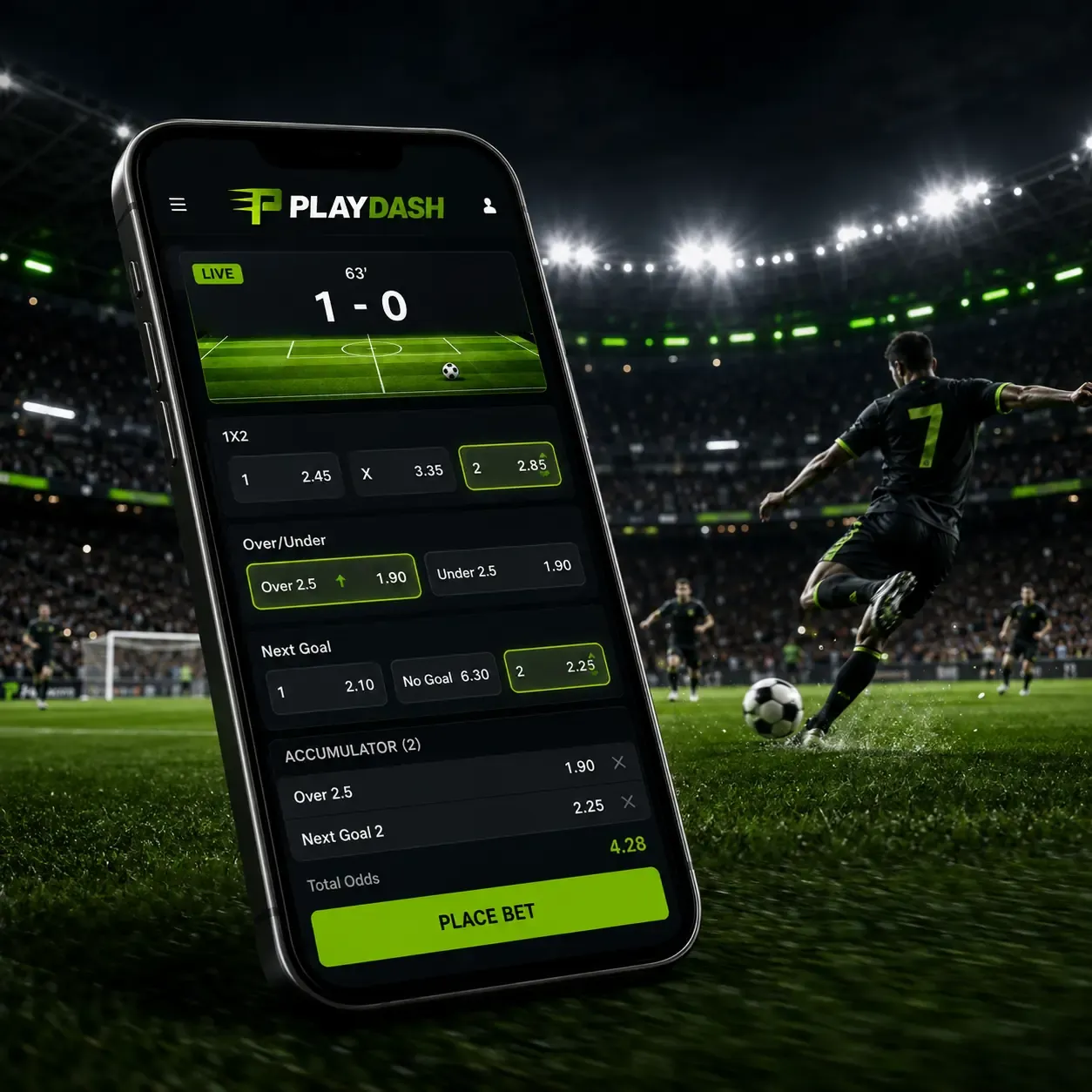
| Sports slip spins after Place Bet | The bet may or may not have been accepted at the final price | Open bets: is the slip there, at what odds? |
| Instant game stops before collect | The round's end condition still applies | Game history for the round result |
| Cashier page reloads after the bank app | The deposit may be pending | Cashier history before paying again |
A weak connection can make a game freeze, so check whether a wager was accepted before refreshing, so that the same action is not submitted twice. If the history does not show the round or bet you expect, note the game or table, the time and the stake, and contact support rather than placing it again.
Bank handoffs during a deposit
On a phone, a deposit leaves the browser for a banking or wallet app, where you approve the payment, and then returns. That switch can reload the page. Before paying again, open the cashier history: if the first request is pending, it is still being processed, and a second payment would create a second transaction. Approve payments only inside your own bank's app, and never type a banking password, PIN or one-time code into any other page.
Reward timers keep running
Some rewards run on cycles that a dropped connection does not pause. Singapore recurring rewards such as One Day One Loot reset after 24 hours, and Daily Highlights uses a daily reset; the Welcome Bonuses Pack has a countdown after registration, and some cards need activation before a qualifying deposit. If a session drops while a reward is involved, check the promotions area for its status rather than depositing again to "restart" it. A timer is a reason to check, not a reason to chase.
Signing out and shared devices
Log out after using a shared device, and avoid public or shared devices for PLAYDASH where you can. A browser left signed in on someone else's phone is an open session. Remember that PLAYDASH applies a one-player-one-account rule, and matching devices can be treated as signs of duplicate profiles; a legitimate shared-device situation should be discussed with support before anyone creates another account.
Keeping the device ready
A current browser, a stable internet connection and enough free memory matter most, particularly for live video. Install operating-system and browser updates, close unused apps and tabs, and avoid unknown browser extensions and remote-access tools, especially during payment activity. Check the official domain before every login rather than trusting a saved link from a message.
Frequently asked questions
Is there an official PLAYDASH app?
No official APK or store app is confirmed. Use a current browser; a home-screen shortcut gives one-tap access to the same account.
The live stream froze after I placed a bet. Did it count?
Only if it was accepted before the betting window closed. Check the game history for that table and round before betting again.
My bet slip kept spinning. Should I press Place Bet again?
No. Check open bets first. If the slip is not there, it was not accepted; if it is, placing it again would create a second bet.
The page reloaded during my deposit. What now?
Open the cashier history. If the first request is pending, wait rather than paying again.
Does switching to mobile data affect my account?
No, but it can drop a live stream or a session. Start live play on the connection you will stay on.
Should I log out on my own phone?
It is sensible on any device others can use, and essential on shared or public devices.
Check the history, then act
When a session misbehaves, refresh and stabilise the browser first, then read the right history before repeating anything: game history for rounds, open bets for slips, cashier history for payments and promotions for rewards. Use the browser or a shortcut, not an unofficial APK, and sign out on devices you do not control. If the page loads but your details are refused, see login problems; if activity appears that you did not make, go to unfamiliar activity; and the account help overview connects every symptom.